

Music production with FL Studio

One of the solutions that will help you to not lose your projects is to save automatically in FL Studio. In this tutorial, we will teach you how to do this. Also, if you have lost your FL Studio backup,
This guide will show you how to find it. First, you need to know where your FL Studio backup is stored. FL Studio stores backups in different locations depending on the software version. Here we also teach you how to find FL Studio backups.
Auto save in FL Studio
Before you try to restore your backups. You need to know how to auto save in FL Studio.. Here I will teach you the best way. Meanwhile, if you want to download FL Studio, click on the blue link.
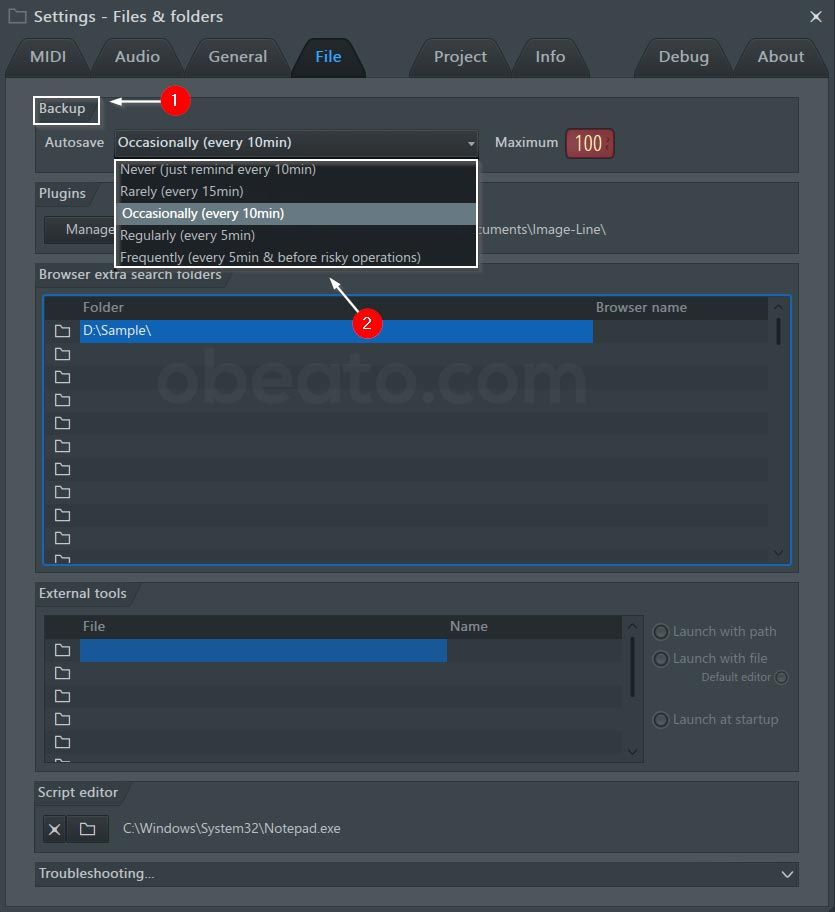
First, go to the Options menu and select File Settings.

In the Backup section, there are options that help you make a backup, I will provide you with more information about each of these options below. In the Autosave section, you can save your project automatically. By selecting any of these options, the project will be saved every few minutes.
How to find FL Studio backups
There are three ways to restore backup files. In the following, I will tell you these three great methods.
The first method
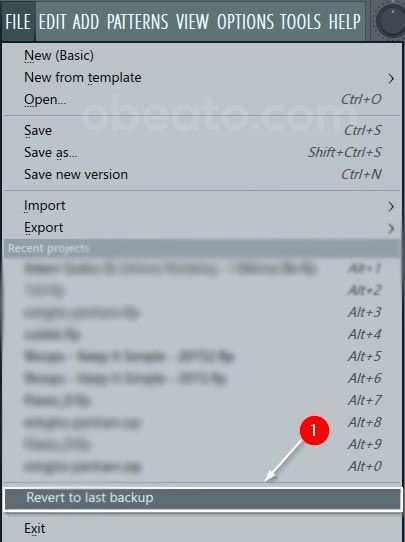
If during work, the project in FL Studio goes out of power or for any reason the software closes automatically, this way you can access the latest backup version.
Go to File menu and select Revert to last backup option.
The second method
Go to the Options menu and select File Settings. From the User Data Folder section, you can see the access path to backup copies in FL Studio. Enter this path in your operating system to access the backup.

The third method
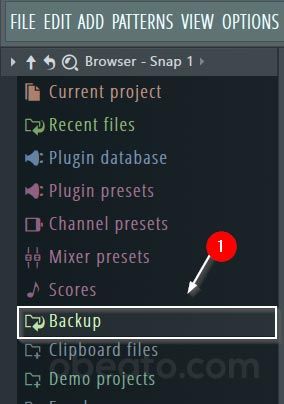
Open the browser in FL Studio, enter and click on Backup. If you want to go directly to the root path of this folder in your operating system. Right click on the backup option and select open.
To see the next sessions, enter the training section of FL Studio.
Conclusion
Finally, it’s important to back up your project files in case your computer crashes or you don’t have access to projects in FL Studio for any reason, or in an emergency. You can use the auto save feature in FL Studio or you can manually back up your files.
By following these simple steps, you can make sure that your projects run smoothly. If this tutorial was useful for you, share it with your friends. Click to learn FL Studio from zero to one hundred.


Your Comment